
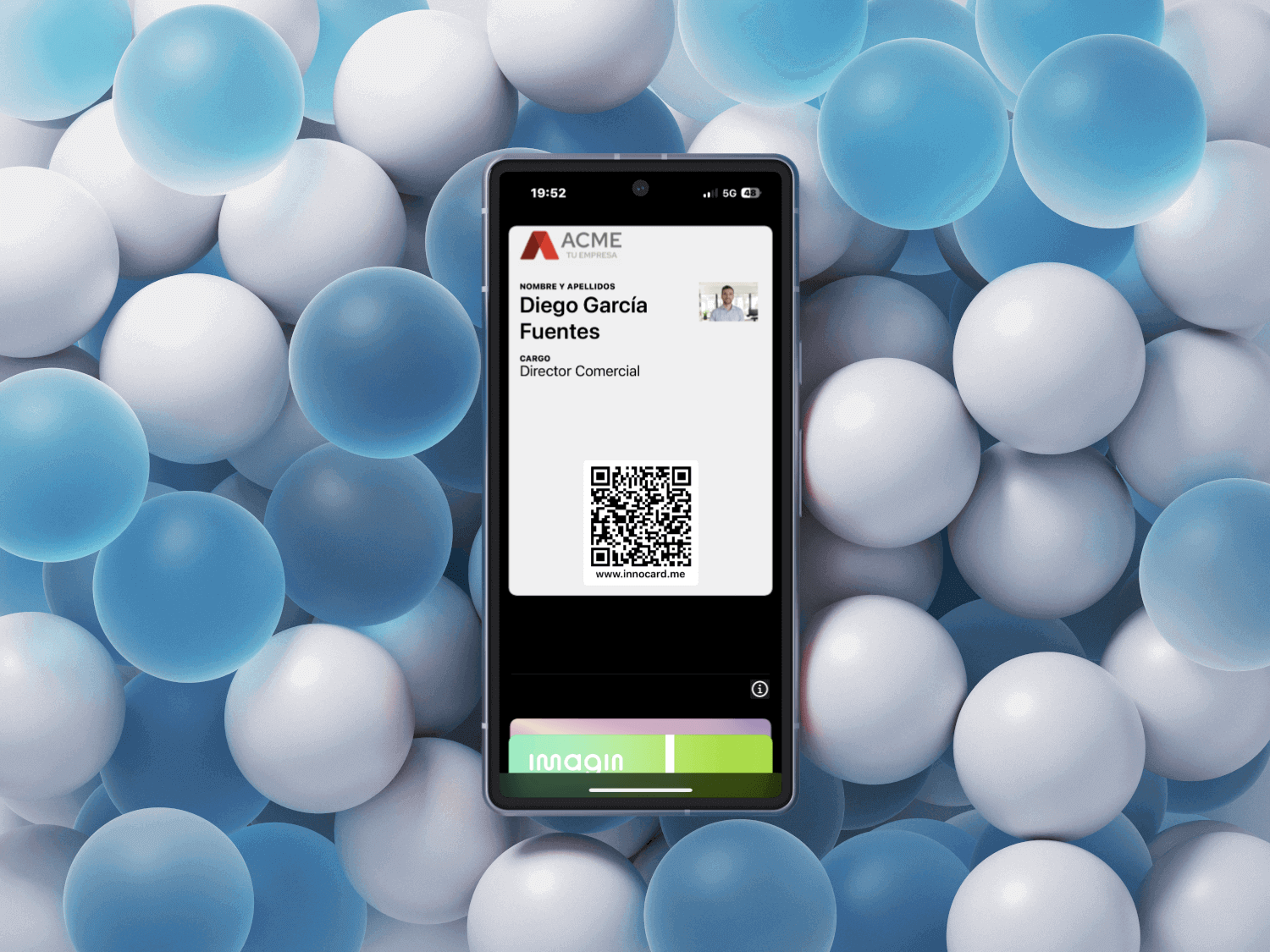
How to Add Your Digital Business Card to Google Wallet
At INNOCard, we understand the significant advantage of having instant access to your business card.
That's why today we're showing you how you can add your digital business card to Google Wallet, making it easy to access your information anytime, anywhere.
Follow this step-by-step guide to integrate your card and enhance your professional experience.
From your computer:
- Log in to the INNOCard Platform: Open your web browser and log in to your INNOCard account from your computer.
- “Download Wallet”: On the platform, look for the “Download Wallet” section and click on it. This will generate a QR code specific to your digital business card.
- Scan the QR code: Use your iPhone’s camera to scan the generated QR code. This step will redirect you to the option to add your card to Google Wallet. Follow the on-screen instructions to complete the process.
From your phone:
- Access INNOCard on your Android: Open the INNOCard platform in your browser.
- Select “Download Wallet”: Navigate to the “Download Wallet” section and add your card directly to your Google Wallet.
- Add to Wallet: Confirm the addition, and your digital business card will be saved in Google Wallet, ready for use at any time.
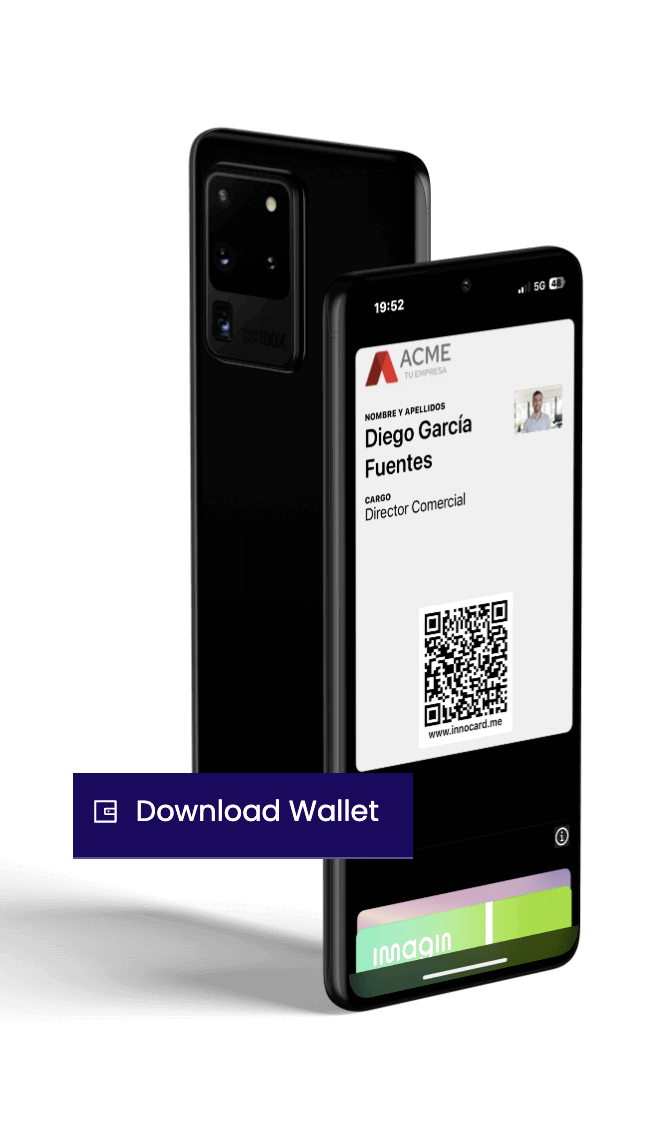
Benefits of using Google Wallet
- Quick and easy access: Keep your digital business card handy at all times, without the need to search through a physical wallet.
- Improved organization: Store all your digital cards and other important documents in one place.
- Eco-friendly: Storing your card digitally helps reduce paper usage and is a more sustainable option.
Adding your digital business card to Google Wallet is a simple step that enhances the accessibility and organization of your professional contacts.
If you need further assistance or have any questions about the process, don’t hesitate to reach out. At INNOCard, we’re here to help.